

Take a look at what’s new from HubSpot's December product updates and releases.
3 Key Feature Call Outs & Mentions
1) More Accurate Lead Scoring
>>This feature is available on Pro and Enterprise tiers across Customer Platform, Marketing Hub and Sales Hub.
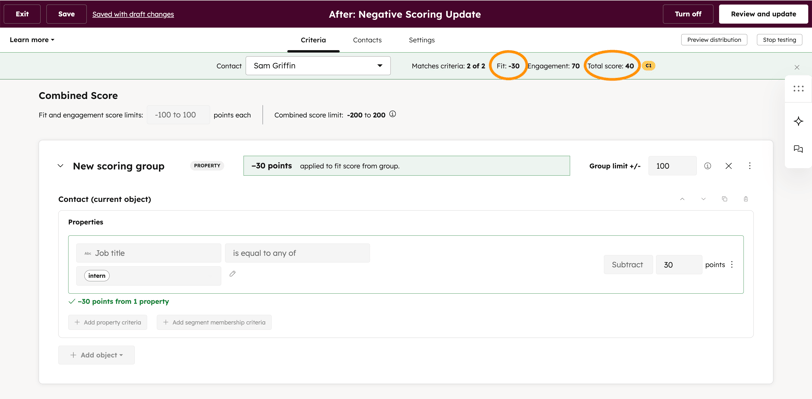
HubSpot lead scores can now display true negative values instead of rounding anything below 0 up to 0. This makes scoring more transparent and ensures combined scores (Fit + Engagement) calculate correctly.
Why focus here? Previously, lead scores could decrease below zero behind the scenes, but HubSpot displayed anything negative as 0, which made it hard to tell the difference between a true “neutral” lead and one signaling poor fit or disengagement. This update removes score inflation and helps teams and automations prioritize with more confidence.

Why Does It Matter?
This update improves lead prioritization for both teams and automations. It solves two big issues:
- You can now differentiate between a true 0 score vs. a score that was negative but rounded up
- Combined scores are no longer artificially inflated when Fit or Engagement dips below 0
Bottom line: You get a more realistic picture of who is high intent, who is low fit, and who’s disengaged — which means smarter routing, smarter follow-up, and better automation logic.
How Does It Work?
Negative lead scores show anywhere scores are displayed, including:
- Score output properties
- History card
- Distribution preview
- “Test a record” results
- Record-level score views
To build or edit a score:
- Go to Marketing > Lead Scoring
- Create a new score or click Edit on an existing one
- Add Fit and/or Engagement criteria
- To subtract points, change the rule from Add > Subtract and assign the point value
Example subtraction rules:
- Subtract points for job titles indicating poor fit
- Subtract points for unsubscribes or disengagement actions
Notes / What to Know
- Impact: Only scores that were previously negative but rounded to 0 will change
- Score limits: Scores can now drop as low as the inverse of your positive limit
- Example: If max is 200, minimum could be -200
- You don’t need subtraction rules — if you only add points, you’ll never go negative
- Thresholds still work the same, but now include negative values
2) Create Contacts Directly from the HubSpot Chrome Extension
>>This feature is available by request on all hubs and all tiers.
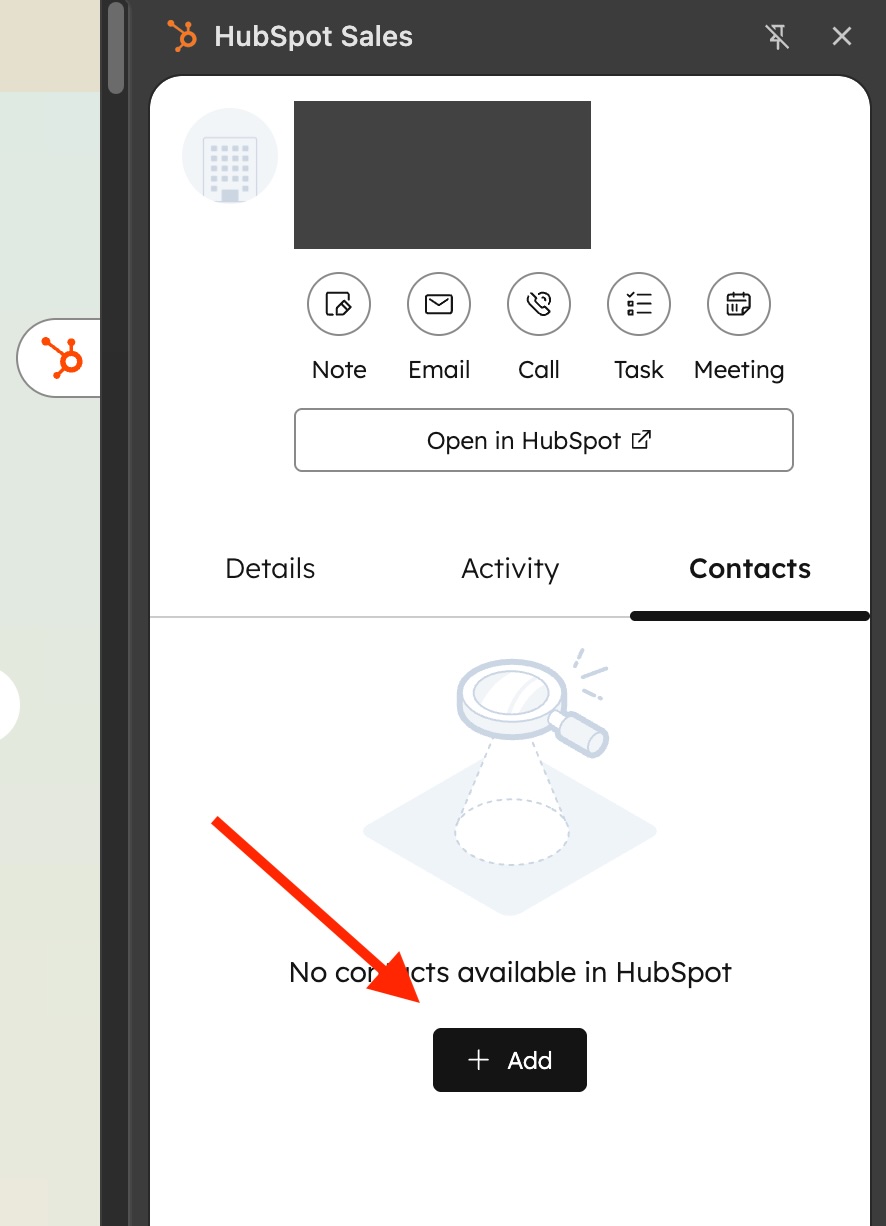
Prospecting often happens outside of HubSpot. With this update, you can now create contacts directly from HubSpot’s Chrome extension while viewing a company’s website. The contact is automatically associated to the company, making prospecting faster and keeping CRM relationships clean with fewer manual steps.
Why focus here? This is a small change that removes friction from everyday prospecting. Sales teams can save time, keep records connected, and ensure new contacts don’t get lost in the shuffle before outreach begins.
Why Does It Matter?
This turns prospect research into CRM records faster, with fewer gaps in account data.
- Keep account relationships accurate with automatic association
- Spend less time on manual entry and fixing bad data
- Improve pipeline coverage by capturing contacts before they slip
How Does It Work?
- Open the HubSpot Chrome extension on the company’s website.
- Go to the Contacts tab.
- Click + Add to open the Add Contact form.
- Create a new contact (or search and add an existing one).
- The contact is automatically associated with the company you’re viewing.
Notes / What to Know
To use this feature, make sure the HubSpot Sales Chrome extension is installed and you’re signed into your HubSpot account in Chrome. Once installed, you can pin it to your browser toolbar for easier access while prospecting.
3) Automatically Update Knowledge Vaults by Syncing with Segments
>>This feature is available by request on all hubs and all tiers.
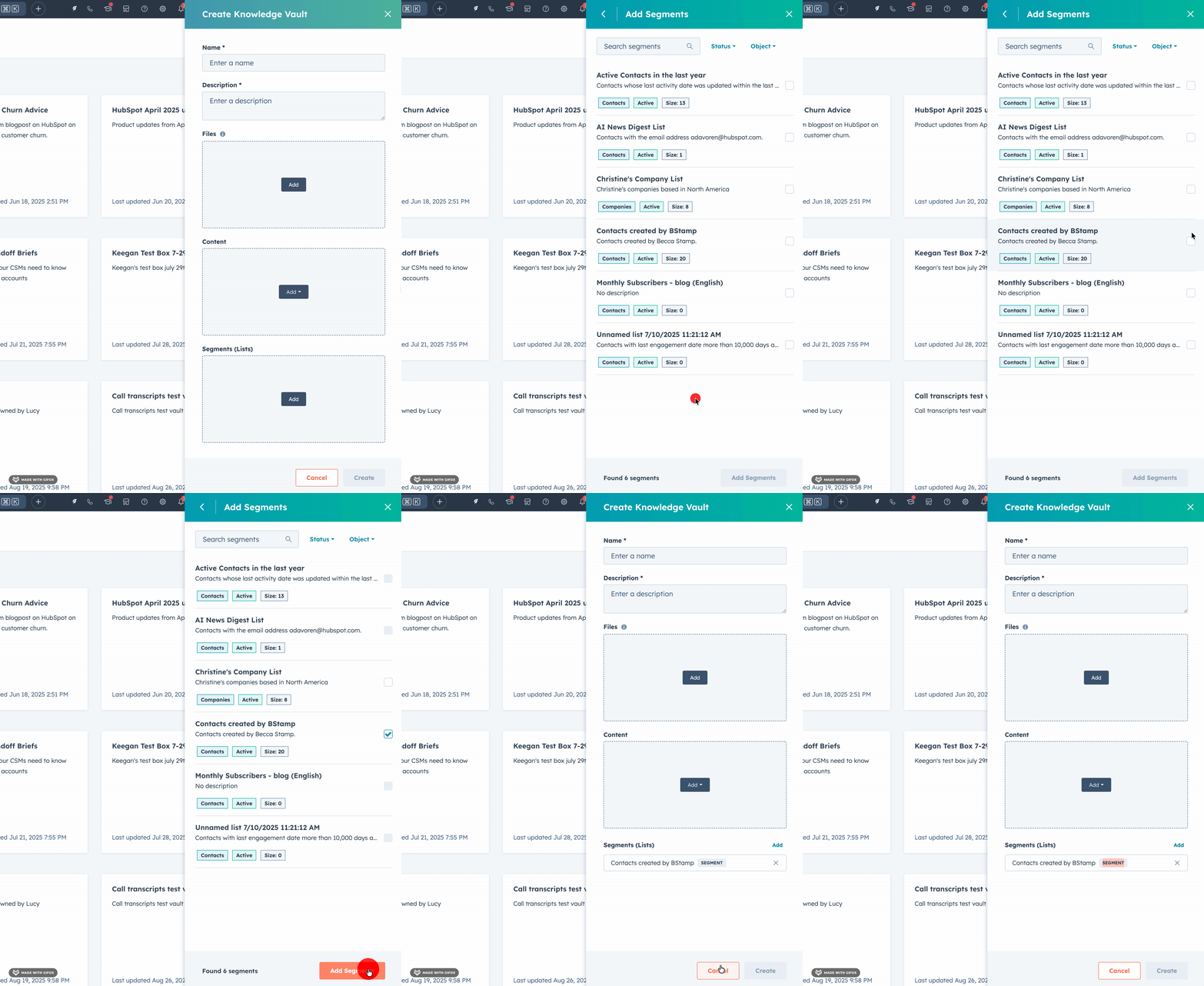
Knowledge Vaults let you control what CRM data HubSpot AI can reference by grouping records into a dedicated collection. With this update, Vaults can automatically sync with a selected HubSpot Segment (Active List), keeping your Contacts, Companies, Deals, or Tickets current without manual maintenance.
Why focus here? Knowledge Vaults are only as valuable as the data inside them. This update reduces manual upkeep, prevents stale or irrelevant records, and helps ensure your AI Assistants and Agents are using the most accurate CRM information available.
Why Does It Matter?
This makes it easier to keep your Vault aligned with the right CRM records over time, without needing manual upkeep.
- Keeps vault contents current as your segment changes
- Cuts down on ongoing maintenance and cleanup
- Helps AI tools pull from the right Contacts, Companies, Deals, or Tickets
- Reduces the chance of outdated or irrelevant records showing up in responses
How Does It Work?
When creating a Knowledge Vault, you can now choose to power it with an Active List (Segment):
- Select the object type: Contacts, Companies, Deals, or Tickets
- Choose an existing active segment (Active list)
- Name and describe the Vault
- Optionally connect it to specific Agents or Assistants
From there, the vault automatically stays in sync with the segment as records enter or exit the active list. No manual updates needed.
Notes / What to Know
- One active list can be linked per vault
- Segment-powered vaults do not support adding files or other content
Honorable Mentions
1. Zendesk to HubSpot Help Desk Ticket Migration Improvements
(Available Across Pro & Enterprise Tiers on Service Hub)
You can now migrate customer support ticket data from Zendesk into HubSpot Service Hub with full historical conversation threads included. Migrated conversations appear like native threads inside the Help Desk, stay associated to the right tickets, and retain key relationships in HubSpot. This closes a major gap for teams moving off mature support tools and makes it easier to preserve context, maintain continuity for support reps, and deliver a smoother customer experience during and after migration.
2. Activities Now Available in Data Model Builder
(Available Across all HubSpot Products and Tiers)
Data Model Builder now includes activity objects, giving teams clearer visibility into how customer interactions like emails, calls, meetings, tasks, and notes connect across the portal. This makes it easier to review configurations, understand where activities are being used, and keep your CRM structure aligned as your portal grows.
Subscribe now to get the latest HubSpot updates and AI features delivered straight to your inbox, or talk to our team for personalized guidance!
Blog comments