

Take a look at what’s new from HubSpot's May product updates and releases.
>> Subscribe to our monthly newsletter for more updates like these!
TL;DR - May Updates
- Trigger Breeze Agents directly inside HubSpot workflows
- Track citation and visibility data with new AEO categories
- Measure custom object velocity with stage calculated properties
1) Trigger Breeze Agents Directly Inside HubSpot Workflows (Public Beta)
>>This feature is available on Professional and Enterprise tiers across all hubs.
HubSpot is bridging the gap between artificial intelligence and day-to-day operations by allowing you to deploy Breeze AI agents right inside your standard workflows.
What changed
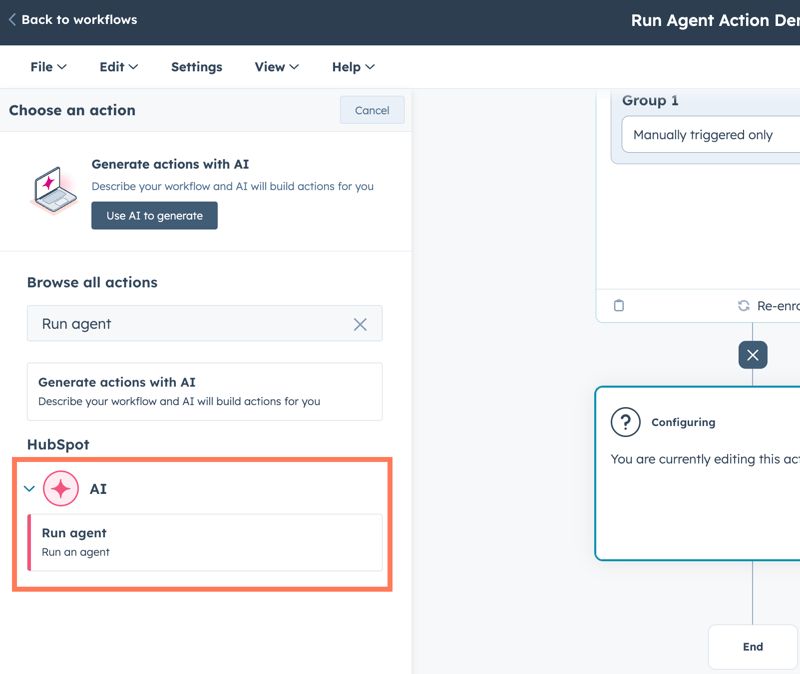
The "Run Agent" Workflow Action lets you trigger an AI agent as an automated step within the Workflows app alongside your CRM data.
Instead of agents operating in standalone silos, you can now configure exactly which agent to run, choose what information and context it receives from your CRM, and map its final output directly back into your HubSpot ecosystem to update records or trigger next steps.
Why it matters
Until now, automating an agent was limited to specific triggers within Breeze Studio. By bringing this capability into the core Workflows tool, HubSpot is unlocking true "agentic automation."
You can now:
- Use any workflow trigger to deploy an agent
- Orchestrate multiple agents to work together in sequence
- Pass data dynamically between them
It shifts your automation from rigid "if/then" rules to intelligent, context-aware decisions.
How to apply this
-
Open the Workflows app and create or edit a workflow.
-
Click the + plus icon to add a new action, expand the AI section, and select Run agent.
-
Select the specific agent you want to deploy from the dropdown menu (Note: Only agents already installed/configured in your portal via the Breeze Marketplace will show up here).
-
Use the data panel to select the relevant HubSpot properties to send to the agent as its Inputs (e.g., sending a company domain to a research agent).
-
Define your Agent Outputs. You can choose a raw Text response or select Structured data (like numbers, dates, or booleans) to isolate specific pieces of information. You can even click Generate from instructions to let AI build these outputs for you based on the agent's core training.
-
Use those fresh outputs as tokens in your subsequent workflow actions.
Note: While the feature is currently in beta and does not require HubSpot credits to execute, it has a temporary limit of 500 executions per day and will eventually consume portal credits once it hits general availability.
2) Maximize Brand Citations with New Target Channels in the HubSpot AEO Tool(Public Beta)
>>This feature is available on Professional and Enterprise tiers across Marketing hub.
HubSpot is making it easier to ensure your brand gets cited by AI search engines like ChatGPT, Gemini, and Google’s AI Overviews by targeting the specific channels that influence them most.
What changed
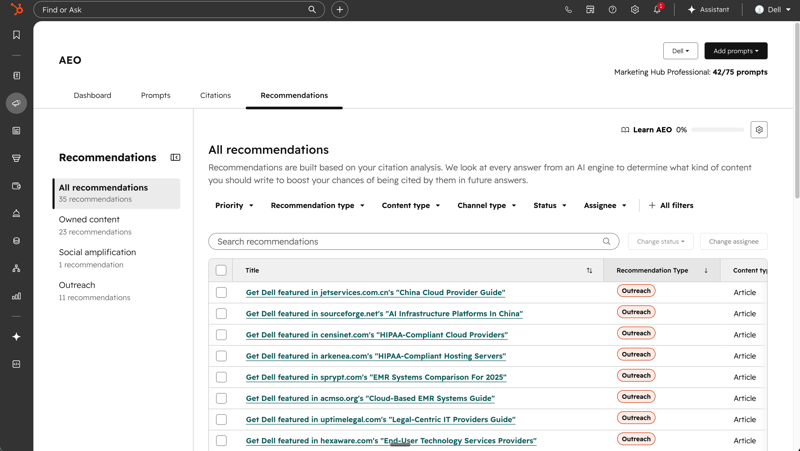
Three brand-new recommendation categories are now available in the Answer Engine Optimization (AEO) tool: Social, Video, and Outreach.
Each category analyzes your brand's current citation and visibility data across the web and translates it into specific, actionable steps you can take to improve your presence in AI-generated answers.
Why it matters
Knowing your brand's visibility score is only half the battle. These new categories close the optimization gap by targeting the exact off-page channels that modern AI systems use to build their answers:
- Social: Tracks the real-time conversations and posts AI pulls from platform backbones like Reddit and LinkedIn.
- Video: Targets YouTube content, which AI systems increasingly cite for product reviews and "how-to" queries.
- Outreach: Identifies the third-party publishers and affiliate sites shaping how AI describes your industry or software category.
How to apply this
- Open the Recommendations tab within the HubSpot AEO tool.
- Review the three new categories generated specifically from your portal’s unique AEO data, prompts, and competitors.
3) Track Pipeline Velocity for Custom Objects
>>This feature is available on Enterprise tiers across all hubs.
HubSpot is bringing advanced pipeline reporting to your custom data structures, giving you native tracking on exactly how fast custom records move through your business processes.
What changed
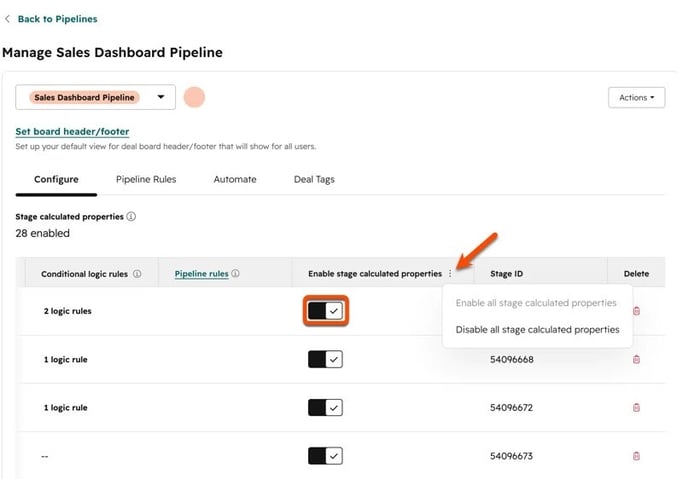
Custom objects now feature native stage calculated properties that automatically log historical and real-time movement through your pipeline stages.
Six brand-new, system-calculated properties are now available for any custom object:
- Date entered {stage id}and Date exited {stage id}
- Latest time in {stage id} and Cumulative time in {stage id}
- Time in current stage
- Date entered current stage
Why it matters
For teams running complex operational processes on Custom Objects (like onboarding projects, inventory tracking, or partner applications), measuring pipeline speed used to require complex, multi-step workaround workflows.
By making these properties native, HubSpot allows you to instantly:
- Surface bottlenecked records
- Analyze historical stage progression
- Trigger automated operational tasks or alerts
How to apply this
These properties track and update completely automatically behind the scenes as records move through your custom pipelines. To start utilizing them:
- Navigate to Settings > Properties and select your desired Custom Object from the dropdown menu.
- Search for any of the six new property names to verify they are active or to add them to your record sidebar views.
- Pull these properties directly into the Custom Report Builder to create velocity dashboards, add them as columns to filter your daily CRM Board Views, or use them as enrollment triggers in Workflows
Honorable Mentions
1. Advanced Data Visualizations in Breeze Assistant
(All hubs and tiers where Breeze Assistant is enabled)
Breeze Assistant can now generate rich, flexible charts and graphs directly inside your conversation using natural language. Instead of being locked into fixed layouts, you can ask Breeze to build multi-axis charts, add live annotations, and refine visual details turn-by-turn using a mix of your CRM metrics, uploaded spreadsheets, or live web search data.
2. Enroll to Prospecting Agent from Gmail and Outlook
(Available on Professional and Enterprise tiers across Sales Hub)
You can now enroll CRM contacts into your Breeze Prospecting Agent workflows directly from your Gmail or Outlook inbox sidebars. This eliminates the need for sales reps to constantly switch tabs between their email clients and the HubSpot CRM, keeping outreach seamless and reducing context switching.
3. Brand Settings Permissions
(Available on Professional and Enterprise tiers across Marketing Hub)
HubSpot has introduced dedicated, isolated View and Edit permissions specifically for Brand Context. Admins can now safely grant creative teams access to manage the brand kit, brand voice, and company assets without having to give them "Edit Account Defaults" permissions, protecting sensitive account settings without sacrificing delegation.
4. An Easier Way to Define Lead Qualification Criteria in Customer Agent
(Available on Enterprise tiers across Service Hub)
Admins can now define lead qualification rules for the AI Customer Agent using HubSpot's native, structured CRM filter UI. Replacing the old free-text entry system with standard property, operator, and value dropdowns drastically reduces configuration typos and ensures your bot qualifies leads with absolute database precision.
Subscribe now to get the latest HubSpot updates and AI features delivered straight to your inbox, or talk to our team for personalized guidance!
-1.png?height=500&name=accelant%20Blog%20Graphic%20(1)-1.png)




Blog comments